
Tkinter Label widget is used to display text or images inside a Tkinter window. It is commonly used to show titles, captions or information in GUI applications.
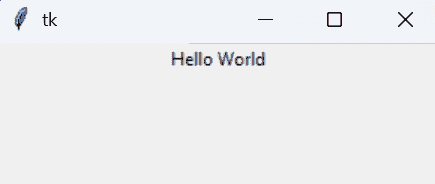
Example: In this example, a simple window is created and display a basic text label.
import tkinter as tk

root = tk.Tk()
lbl = tk.Label(root, text="Hello World")
lbl.pack()

root.mainloop()
Output
Explanation:
- tk.Label(root, text="Hello World") creates a label with the text Hello World.
- lbl.pack() displays the label in the window.
- root.mainloop() runs the GUI loop to show the window.
Syntax
Label(master, options)
Parameters:
- master: The parent window or widget in which the frame is placed.
- options: A set of configuration options written as key-value pairs.
Tkinter Label Options
Some commonly used options of the Label widget are:
- text: The text displayed on the label.
- image: Displays an image on the label.
- bg: Sets the background color.
- fg: Sets the text color.
- font: Specifies the font style and size.
- width: Sets the width of the label.
- height: Sets the height of the label.
- padx: Adds horizontal padding.
- pady: Adds vertical padding.
- relief: Sets the border style (FLAT, RAISED, SUNKEN, etc.).
Example
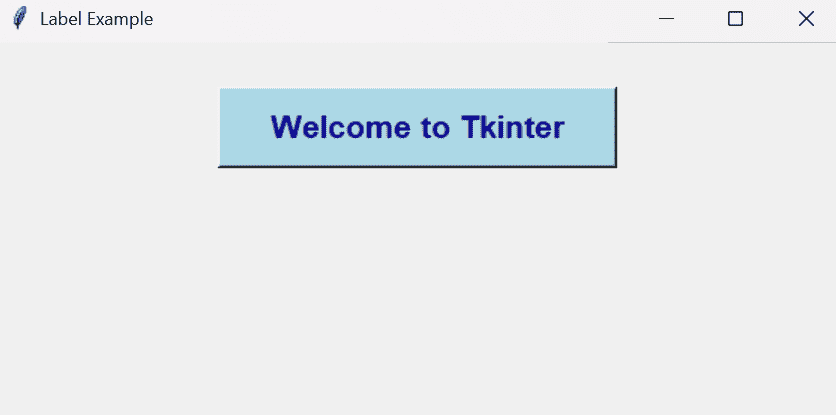
In this example, a Tkinter window is created and display a styled label with custom font, colors, size and border. This shows how labels are used in real GUI applications.
import tkinter as tk

root = tk.Tk()
root.geometry("400x200")
root.title("Label Example")

lbl = tk.Label(root,
               text="Welcome to Tkinter",
               font=("Arial", 16, "bold"),
               bg="lightblue",
               fg="darkblue",
               width=20,
               height=2,
               relief="raised")

lbl.pack(pady=30)
root.mainloop()
Output
Explanation:
- root.geometry("400x200") sets the window size.
- tk.Label(... text="Welcome to Tkinter" ...) creates the label with text.
- font=("Arial", 16, "bold") styles the text.
- bg="lightblue" sets label background color.
- fg="darkblue" sets text color.
- relief="raised" adds border style.
- lbl.pack(pady=30) displays the label with spacing.