Waydroid Setup Guide
What is Waydroid?
Attention
Waydroid does not work on Nvidia hardware.
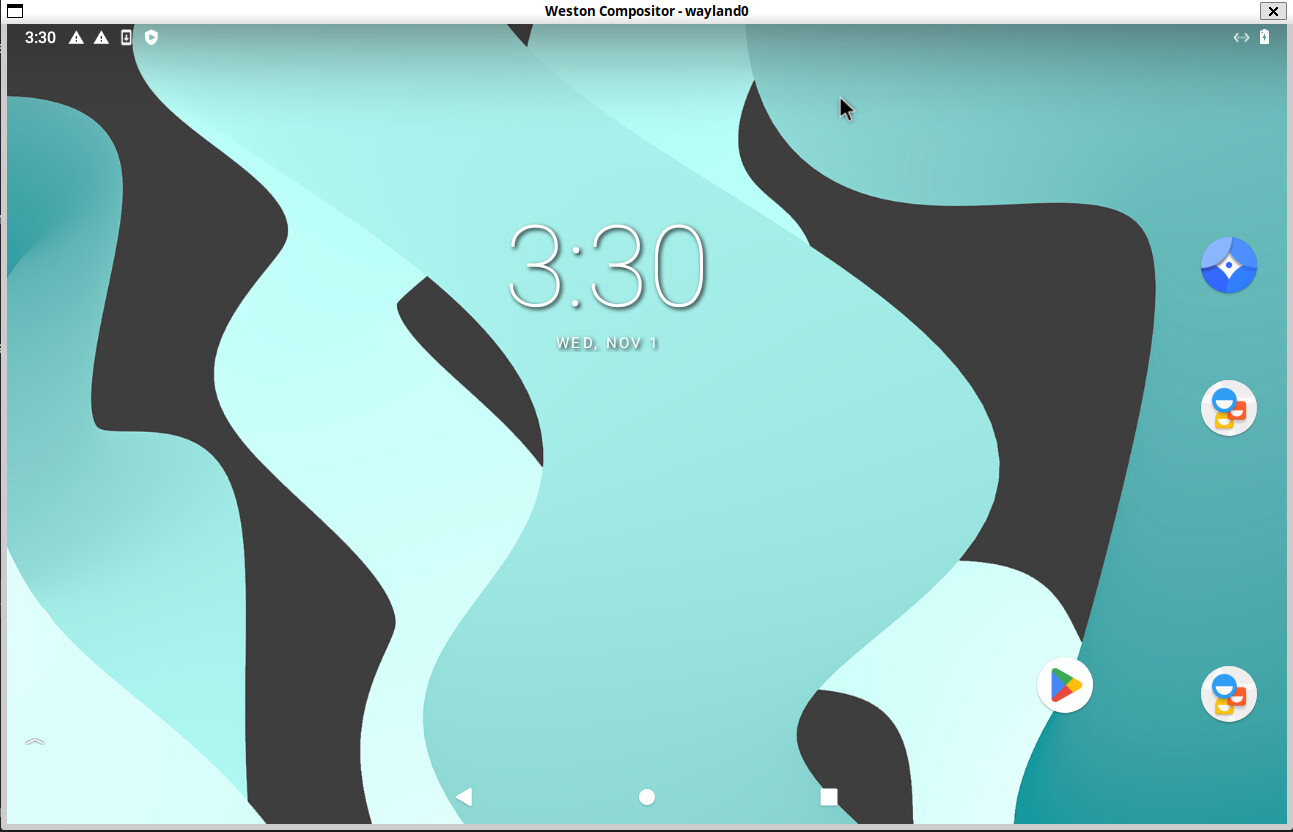
Waydroid is an Android container that runs on Linux. Bazzite users can run Android applications using this method.
First Time Setup
Open a host terminal and enter this command to setup Waydroid:
ujust setup-waydroid
Initialize Waydroid
Waydroid requires users to initialize it for the first time which can be done by selecting:
Initialize Waydroid
Make sure this worked by entering this command:
/usr/bin/waydroid-launcher
This will launch Waydroid for the first time.
Configure Waydroid
Customize your Waydroid container
Part 1: Stop Waydroid Session
Waydroid needs to stop running to configure properly.
Open a host terminal and enter this command:
waydroid session stop
Part 2: Configuration
Open a host terminal and enter this command:
ujust setup-waydroid
Selecting Configure Waydroid will allow users to install additional Android tweaks with the Waydroid Extras Scripts.
- Select Android version you have installed. To find installed Android version, start Waydroid, open Settings app then go to "About This Phone". Your Android version will be 11 or 13.
- Select items to install
Available Waydroid Extras:
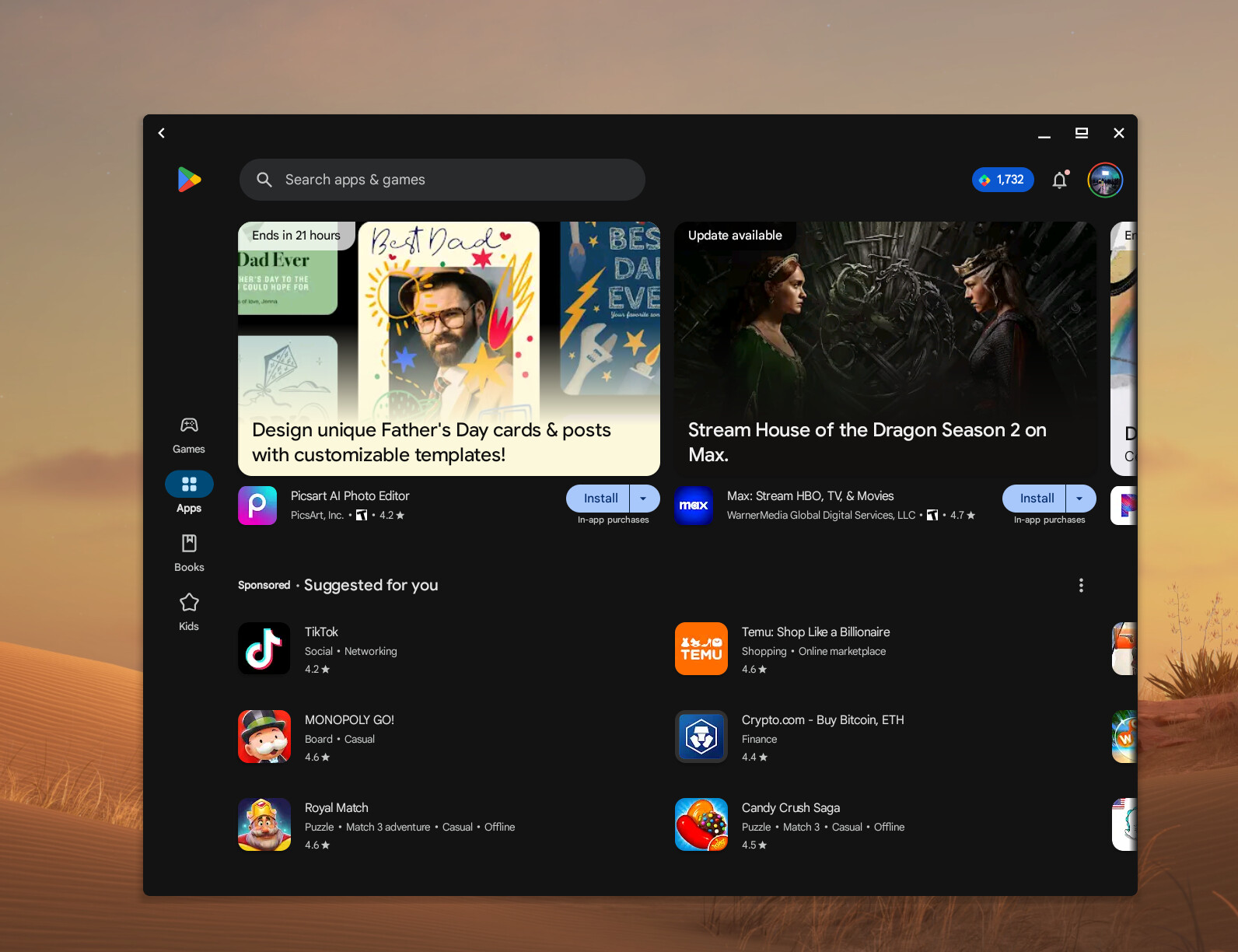
- GApps (Default Android applications including the Google Play Store) or microG (Free alternatives to Google applications)
- ARM Translation (libndk or libhoudini)
- libhoudini offers better overall compatibility compared to libndk.
- Some games may run on only one of libhoudini or libndk. On Android 11, libhoudini will run significantly slower than libndk if you have AMD CPU.
- Do not install both of them at the same time. If you need to switch, uninstall your current translation layer before installing a new one.
- Magisk (Android power user suite)
- Logitech Smartdock Support (SmartDock hardware support)
- F-Droid Privileged Extension (Proper F-Droid support)
widevine(Support for video streaming DRM)
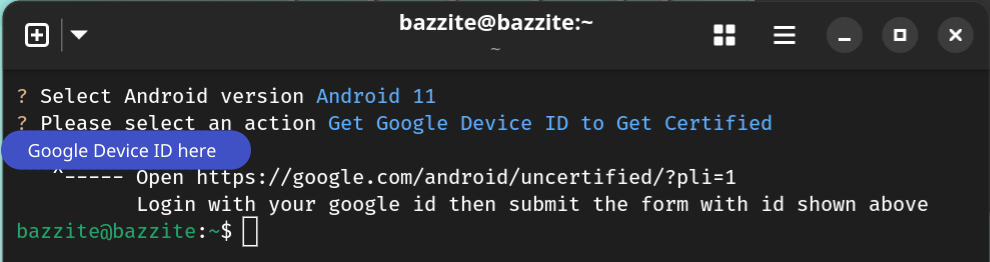
Get Google Device ID to Get Certified (GApps)
-
Launch Waydroid
(Waydroid must be running) -
After selecting your current Android version, select
Get Google Device ID to Get Certifiedespecially if you plan to use the Google Play Store (GApps). -
Follow the instructions in the terminal output.
After verification has happened, it will usually take a while before your device is Google Play certified.
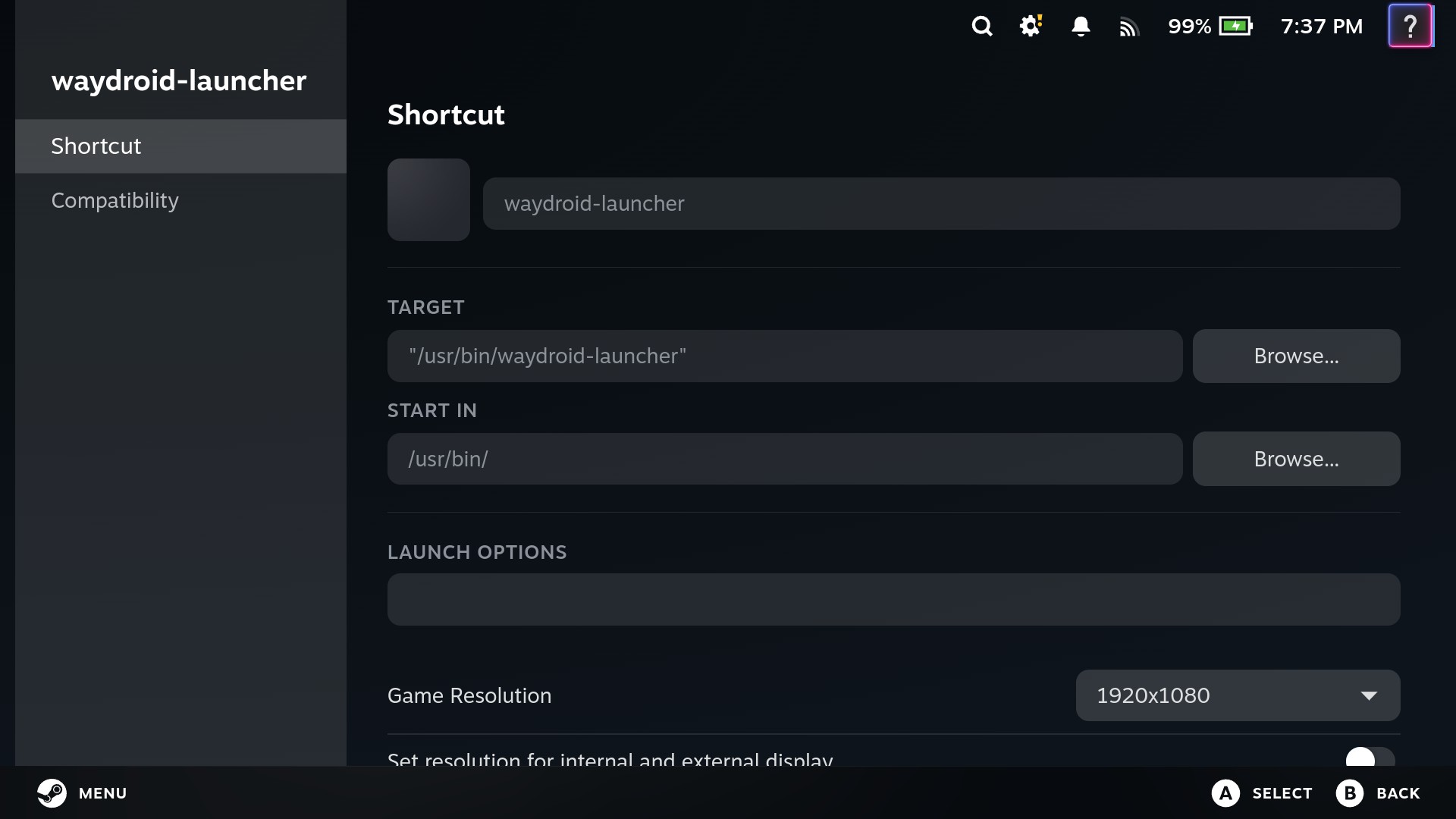
Add as a Non-Steam Shortcut
This is useful for Bazzite images that use Steam Gaming Mode.
Make sure to add /usr/bin/waydroid-launcher to Steam as a non-Steam game for Waydroid to work properly in Steam Gaming Mode.
Enable Multi-Touch Support
To use multi-touch gestures in Waydroid while running under Steam Gaming Mode, you need to enable "Touchscreen Native Support" in Steam's controller settings:
- Within your Waydroid shortcut, go to Controller Settings.
- Go to Edit Layout > Action Sets > Default.
- Select Add Always-On command.
- Under System, select the Touchscreen Native Support command.

Waydroid Tips & Tricks
This section is dedicated to more specific operations and issues within Waydroid running on Bazzite.
Waydroid Helper application

waydroid-helper is a GUI app that enables more advanced configuration and control over your waydroid installations.
To install it, run the following ujust command:
ujust setup-waydroid helper
You can alternatively go directly to their releases and install the latest AppImage via GearLever.
Disable Inputs to Waydroid When Unfocused
Waydroid has an issue where it will register inputs from controllers, keyboards, and other input devices even when the window is not focused.
Disable this functionality:
Note
Waydroid must be running!
In a host terminal, run this command:
waydroid prop set persist.waydroid.uevent false
If you ever want to undo this change, run the same steps but set true instead of false with the same command.
Mouse Clicks to Touch Input
Some applications do not expect mouse clicks and only respond to touchscreen taps.
Note
Waydroid must be running!
You can use this command in a host terminal to enable this per-application:
waydroid prop set persist.waydroid.fake_touch "PACKAGE_NAME_HERE"
Note
Package names are usually in the format of "com.example.appname".
You can find the package name for the application at the bottom of the "App info" page in the Settings app.
Wildcards are also supported, so "com.rovio.*" would apply to all games by Rovio.
An example for the app "Fate/Grand Order" would be:
waydroid prop set persist.waydroid.fake_touch "com.aniplex.fategrandorder.en"
The application inside of Waydroid needs to be restarted for the changes to take effect.
Warning
Only set specific applications with this command!
Setting this globally to the system using a wildcard can cause irregular behavior with the mouse cursor.
To revert these changes, use the following command in a host terminal:
waydroid prop set persist.waydroid.fake_touch ""
Resolution & Density Options
This is intended for users who have issues with Waydroid's resolution, scaling, or running Waydroid nested. This is optional.
Open a host terminal and enter the following commands:
sudoedit /etc/default/waydroid-launcher
sudoedit /etc/default/steamos-nested-desktop
Save the text files when done.
Waydroid Hybrid Graphics Fix
This is only intended for users who have multiple GPUs in their hardware who experience graphical corruptions in Waydroid.
Enter in a host terminal:
ujust setup-waydroid
Then Select GPU for Waydroid which will give the option on what GPU to utilize for Waydroid to fix graphical corruptions.
Reset Waydroid
Warning
You will lose all of your Waydroid data.
If you experience issues or want a fresh Waydroid container, then select Reset Waydroid after entering:
ujust setup-waydroid