Secure Boot Guide
Bazzite Supports Secure Boot
Note
Click "Continue boot" if your device doesn't support Secure Boot or you don't want to enable it.
Important
The enrollment prompt uses an English QWERTY keyboard layout, indiscriminately of your actual hardware keyboard. Other layouts can therefore interfere with the characters of the password (i.e. A and Q are swapped on AZERTY layouts).
Bazzite supports Secure Boot however Universal Blue's key must be enrolled to use it otherwise keeping Secure Boot on in your BIOS will result in Bazzite not booting.
Important Secure Boot Notes:
- Entering the password will register invisible characters for security purposes, so you will not be able to see what you are typing!
- Updating your BIOS may re-enable Secure Boot and you may have to follow "Method B" after updating it to resolve the black screen on boot complaining about loading the kernel first.
- Secure Boot is incompatible with CSM (Compatibility Support Module) / legacy mode. Make sure it is disabled and not set to
enabledorauto. - The Steam Deck does not come with secure boot enabled and does not ship with any keys enrolled by default, do not enable Secure Boot on your Steam Deck unless you absolutely know what you're doing.
Error Message (if key is not enrolled properly):
error: ../../grub-core/kern/efi/sb.c:182:bad shim signature.
error: ../../grub-core/loader/1389/efi/linux.c:256:you need to load the kernel first.

Press any key to continue...
Follow Method B below to resolve this and move past the error message if you encounter it.
Method A - During Installation Method
Note
This screen will also appear on the next boot if you enable Secure Boot if it was disabled during installation.
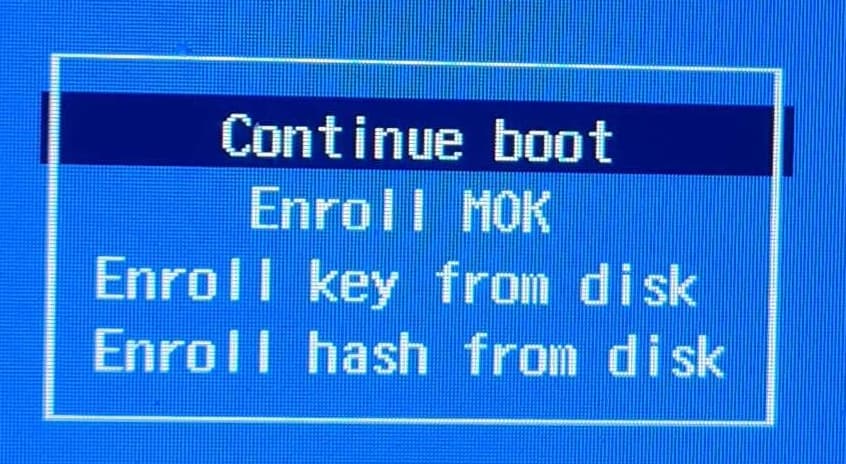
A blue screen will appear giving the option to enroll the signed keys after leaving the Bazzite installer.
Enroll MOK if you have secure boot enabled. If prompted to enter a password, then enter:
universalblue
Otherwise Continue boot if you have Secure Boot disabled or if it is not supported with your hardware.
Method B - After Installation Method
Disable Secure Boot in the BIOS before proceeding, and then re-enable it after enrolling the key.
If you have already installed Bazzite then enter this command in a host terminal:
ujust enroll-secure-boot-key
If prompted to enroll the required key, then enter the password in the host terminal:
universalblue
You can now turn Secure Boot back on in the BIOS.
Use the following command to boot straight into your system's BIOS (if supported):
ujust bios
Complete MOK enrollment at boot
On the next boot, you will see the blue MokManager screen:
- Choose Enroll MOK.
- When prompted for a password, enter:
universalblue
After the reboot, the key is enrolled and Secure Boot can remain enabled. Your system should now boot normally under Secure Boot.